Missions, handovers, and scanning
A committed mission tells the initiative that goods or help have been promised. The Missions tab is the operational view of what is pending and what has arrived.
Monitor commitments
Open Manage → Missions to see the supporter, items, drop-off point, commitment time, expiry, and status. Aggregates distinguish items still pending from items delivered.
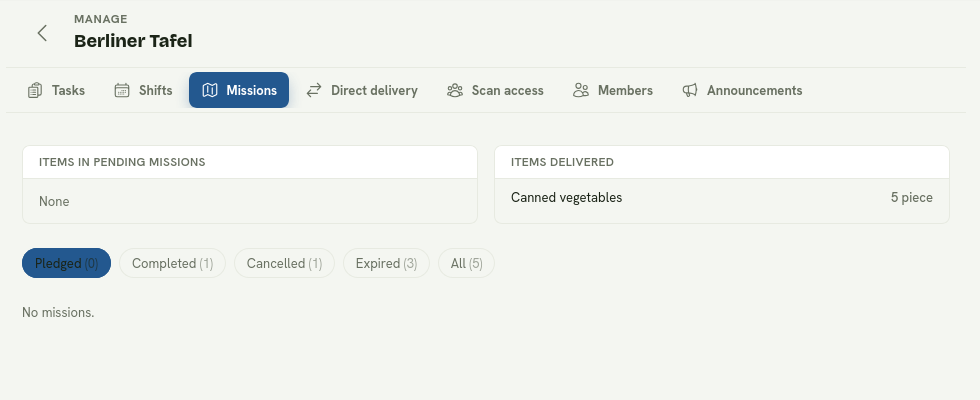
Use delivered totals for stock that actually arrived and the status filters for operational follow-up.
Do not count a pledge as delivered stock. Use the completed totals and handover records for what actually arrived.
Confirm a goods handover
- Ask the supporter to open the mission QR code.
- Open Scan on an authorised device and allow camera access, or enter the mission code manually.
- Check that the mission and drop-off point are correct.
- Confirm the handover.
A successful scan completes the mission and records the delivery. A cancelled or expired mission cannot be confirmed. A repeated scan reports that it was already handled rather than completing it twice.
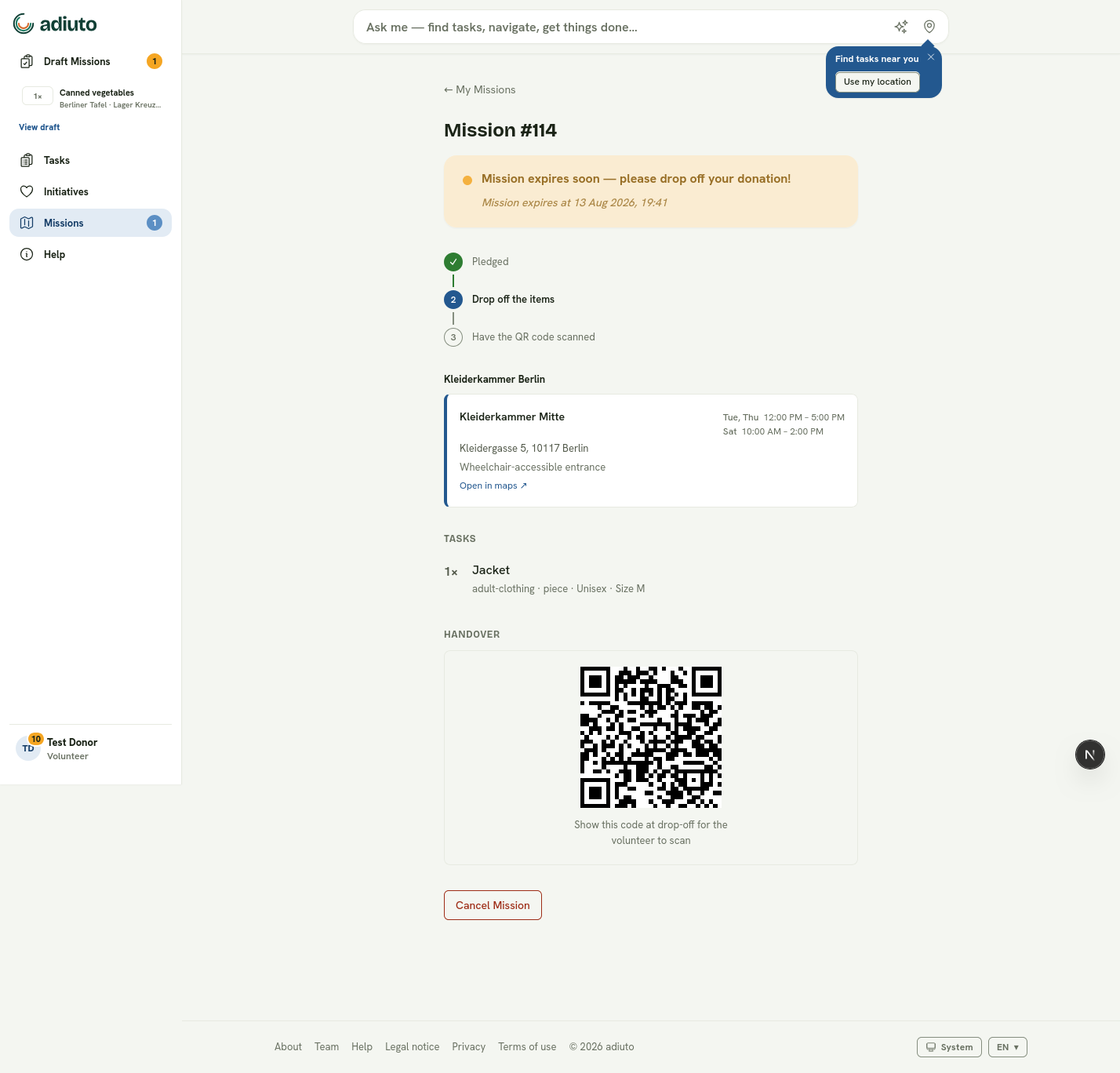
Before scanning, compare the mission, initiative, and handover location with the person and goods in front of you.
Check in an activity or shift
Scan or open the check-in flow when the volunteer arrives. Check-in starts the activity mission; scheduled shifts normally complete automatically after the slot ends.
Give ground volunteers scan access
Team members who only receive goods do not need a full account. Under Manage → Scan access, create a personal, time-limited link, label it for the intended volunteer, and share it directly.
The first device to open the link claims it. It then has scanning authority for that initiative only. Revoke the link immediately when the person no longer needs it or a device is lost. Never publish a volunteer link or reuse one for a group.
Abort a mission
Coordinators can abort a committed mission when the initiative genuinely cannot receive it. The reserved demand is restored and the supporter is notified with the selected or written reason. If the goods are no longer needed at all, deactivate or update the task as well so another supporter does not make the same commitment.