Missions and handovers
A mission is your concrete commitment to an initiative. It lets both sides distinguish a good intention from something genuinely on its way.
Draft first, commit second
Adding a task creates or updates a draft. You can change quantities and remove items before anything is reserved. Goods for different drop-off points are grouped into separate missions because each must be handed over separately.
When the draft is correct:
- sign in;
- review every task, amount, place, and time;
- select Commit to this mission or commit all planned missions;
- open My Missions to follow the next step.
Once committed, the quantities or shift places are reserved and the initiative can plan around your promise.
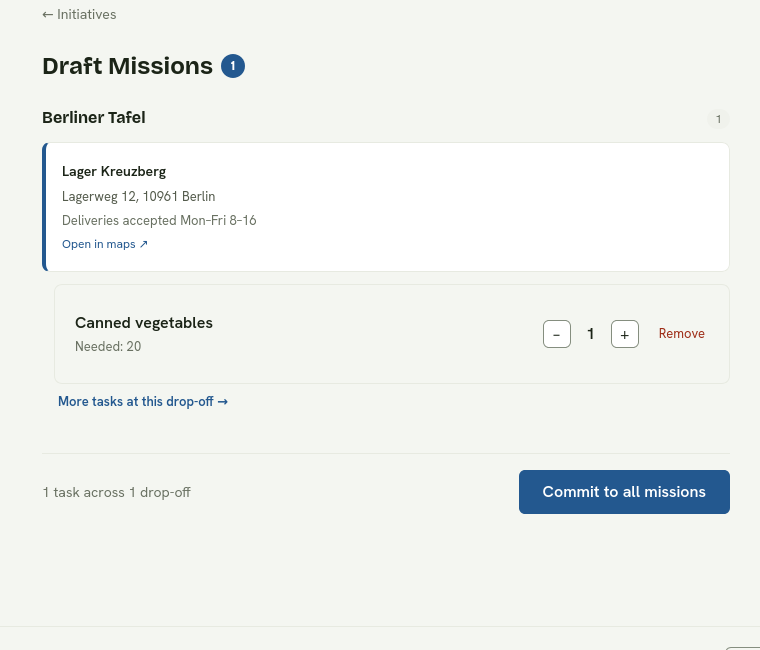
Nothing is reserved until you review the grouped draft and commit the mission.
Complete goods missions
Bring the listed goods to the location shown in the mission before it expires. At the drop-off point, show the mission QR code. An authorised person scans it and confirms the handover; the mission then shows as completed.
Do not post the QR code publicly. It is the capability used to confirm your specific mission.
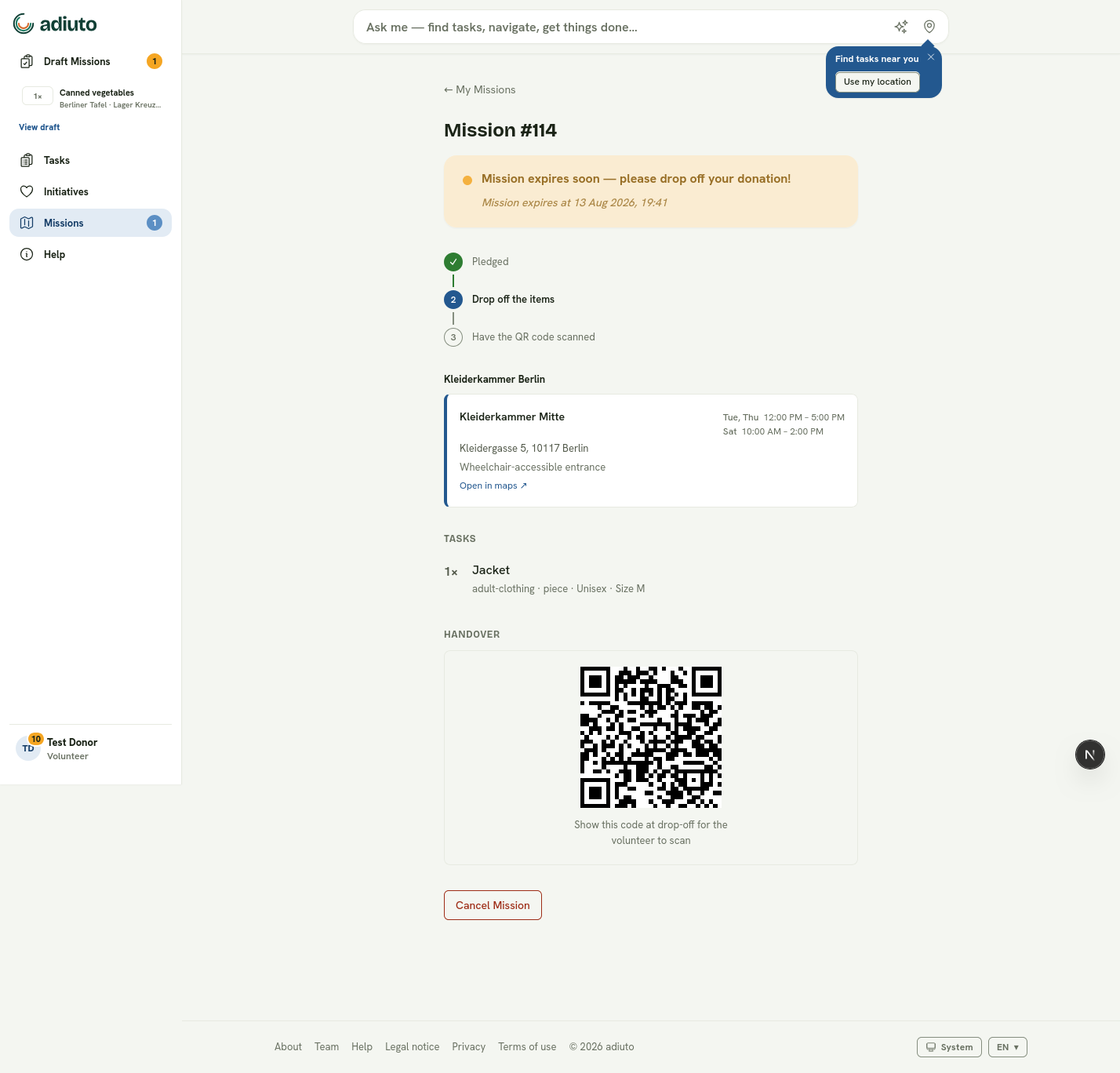
The mission detail is the single place for status, handover instructions, and the QR code.
Complete activities and shifts
Arrive at the shown place and time. Check in using the mission flow or have the initiative confirm your arrival. A scheduled shift completes after its working period ends.
If you cannot fulfil a mission
Cancel it promptly from the mission detail so the reserved need becomes available again. Cancellation cannot be undone. Use it when you genuinely cannot deliver or attend—not as a way to edit a mission. Create a new commitment if your plan changes.
An initiative may also abort a mission or call off a shift for a serious operational reason. The reason is shown to affected supporters.
Mission states
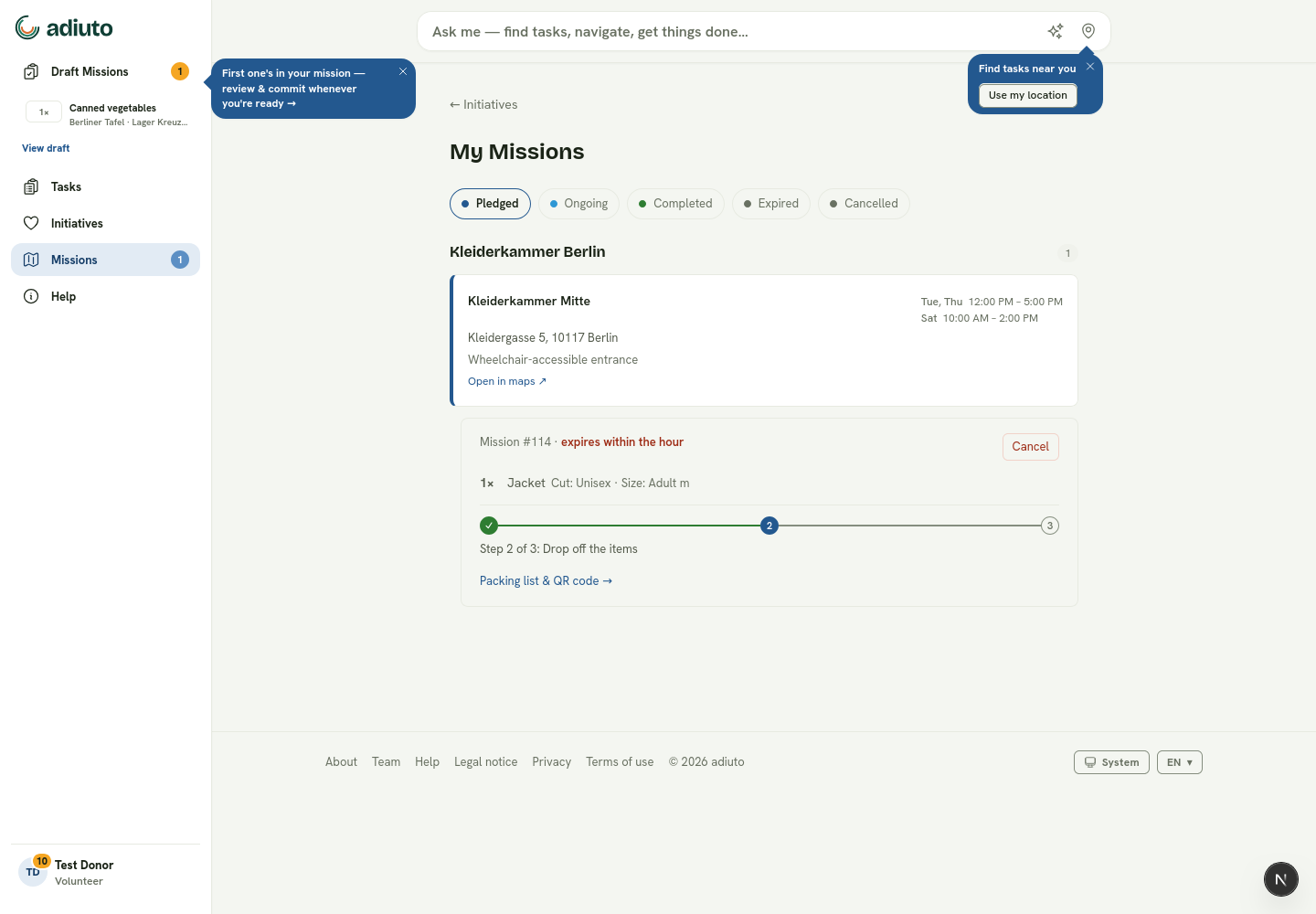
Use the status filters to separate active commitments from completed, cancelled, and expired missions.
- Pledged or booked: confirmed and awaiting the handover or shift.
- Ongoing: a checked-in activity or shift is in progress.
- Completed: the handover was confirmed or the attended shift ended.
- Cancelled: cancelled by you or the initiative.
- Expired: it was not completed within its allowed time.