Find the right need
The tasks page combines text search, filters, nearby results, and a map. You can browse without signing in.
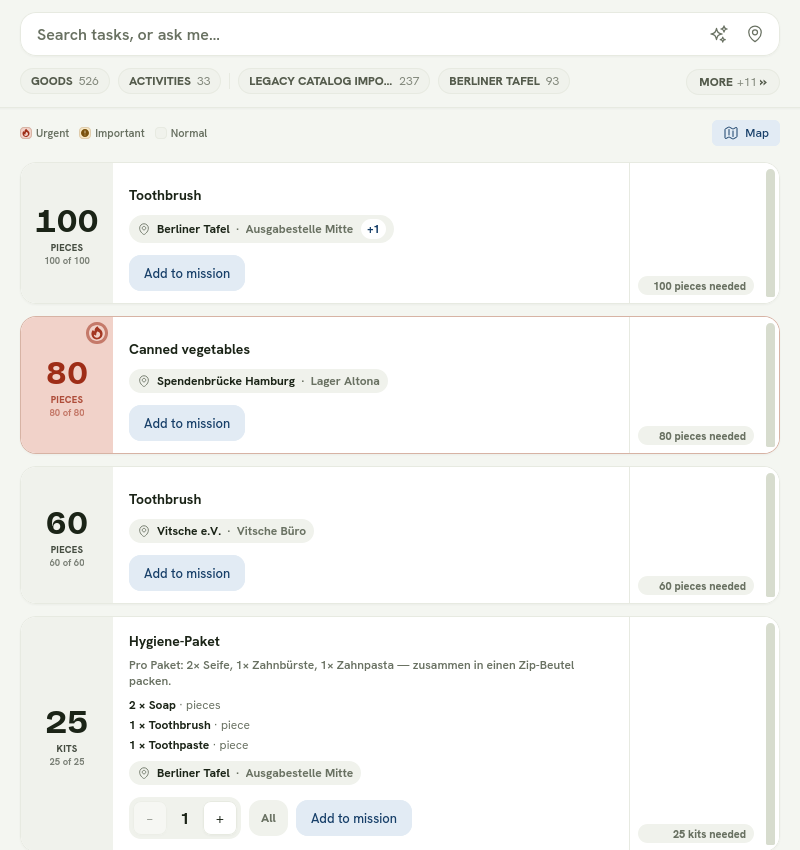
The current Tasks view keeps the most important decision details together on each card.
Search in your own words
Enter an item or kind of help, such as “sleeping bags,” “translation,” or “food distribution.” The search may show a close alternative when there is no exact match; the page tells you when it has interpreted the query more broadly.
You can filter by:
- goods or activities;
- category;
- initiative;
- city and radius;
- date for scheduled shifts.
Search near you
Choose Use my location to measure distances from the device location, or enter a city or town. A typed place uses its approximate centre—not a private street address. Signed-in users can save a default search area in their account.
If nothing is open within the selected radius, expand the distance instead of assuming there is no matching need anywhere.
Use the map
The map shows public locations with open needs. Select a location to see how many needs are open there and continue to the relevant tasks. A location without an accurate map pin may still appear in lists but cannot be placed or sorted reliably by distance.
Understand a task card
A task tells you:
- what the initiative needs;
- how much is still needed or how many shift places remain;
- its priority and deadline;
- its location or whether it can be done remotely;
- whether the demand repeats;
- any task-specific note from the initiative.
For a group of goods shown as a kit, the listed quantities belong together. Choose a number of complete kits rather than individual components.
Nothing matches yet
Adjust filters, show needs farther away, or save the search to your Givelist. A saved search is the right choice when you want to give something later but no initiative currently needs it nearby.